Ringbook
Tips and shortcuts
Small habits and keystrokes that save time when you enter, review, find and organize your books. Each tip stands alone, so read only what you need.
Keyboard shortcuts
On Windows and Linux, use Ctrl where the Mac column shows ⌘. Shortcuts for the journal editor are in Manual entry and shortcuts.
| Action | Mac | Windows | Where it works |
|---|---|---|---|
| Open document search | ⌘ K | Ctrl K | Any page after you sign in. In the Shoebox, it moves to the Shoebox search box instead. |
| Show or hide the sidebar | ⌘ B | Ctrl B | Any page after you sign in |
| Select a range of rows | Shift + click | Shift + click | Lists with checkboxes, such as the Shoebox, Documents and Accounts |
| Move between rows | ↑ ↓, Home, End | ↑ ↓, Home, End | The same lists, with a row focused |
| Select while moving | Shift + ↑ ↓ | Shift + ↑ ↓ | The same lists |
| Tick or untick the focused row | Space | Space | The same lists |
| Select every row | ⌘ A | Ctrl A | The same lists, with a row focused |
| Open a link in a new tab | ⌘ click | Ctrl click | Any link |
Plain arrow keys only move the focus. They never change which rows are selected, so you cannot lose a selection by scrolling with the keyboard.
Entering
Send receipts by WhatsApp the moment they happen
A receipt photographed at the till with a one-line note is easy to book. The same receipt found in a shoebox at year end is a guess. Ask clients to send each document as it happens, with a short description.
Where a message ends up depends on what you send:
| You send | It goes to | Notes |
|---|---|---|
| A photo or PDF on its own, in WhatsApp | The Shoebox | No Ring is posted. Match it to an entry later. |
| Text, with or without a document, in WhatsApp | A Ring for review | Example: "Lunch with Mary, my card" with the receipt attached. |
| An email with attachments | The Shoebox | This holds even when the email has a subject. |
An email whose subject starts with /ring | A Ring | Use it only when you want a Ring. |
Someone who sends you invoices often, such as a contractor, can have the Contractor role. It lets them post rings (by WhatsApp, email or in the app) and see only the rings they posted. They cannot book journals or open reports and settings.
Balance a journal with one key
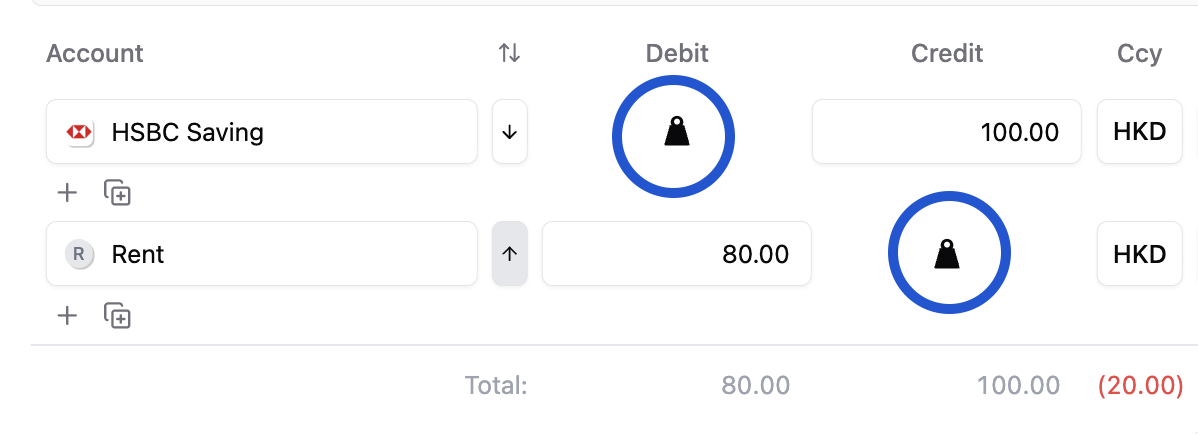
In the amount box of any line, press B. That line takes the amount that makes total debits equal total credits. The same action is the weight icon on the line. It works when the journal is out of balance and every line uses one currency.
Example: you have entered Stationery 480.00 on the debit side. On the empty Bank line, press B and the credit becomes 480.00.
Paste lines from a spreadsheet
Copy a block of cells in Excel or Google Sheets, click the first cell you want to fill in the journal editor, and paste. Columns fill to the right and rows fill downward, adding lines as needed (up to 1,000 rows).
Account and segment names must match exactly, or use the account code. A row with an amount in both Debit and Credit is rejected.
Reuse an amount, copy a cell, or save with the keyboard
- Press ↑ or ↓ in an amount box to recall another line's amount.
- Press Enter to move to the same column on the next line, and Shift + Enter to go back. Enter on the last line adds a new line.
- Press ⌘ Enter (Windows: Ctrl Enter) to save the journal.
The full list is in Manual entry and shortcuts.
Reviewing
Trace any figure back to its source
Click a figure on a report to open the journal behind it, then open the Ring it came from. You see the description, the document and the conversation.
Example: on the Profit and Loss, click Stationery 480.00. The journal shows the debit and the Bank credit. The Ring shows who sent the receipt and what they said.
Choose how much journal detail Book shows
The switch in the account column header of Book chooses one of three modes. In Compact it sits between Debit accounts and Credit accounts. The same choice is under Journal detail in the Display menu.
| Mode | What you see |
|---|---|
| Compact | One row per journal. The amount shown is the largest single posting, not the journal total. |
| Grouped | Lines with the same account and side are combined, with a badge for how many. |
| Detailed | Every original line, with its amount and particulars. |
Use Compact to scan, Detailed when you check one entry against its document.
Undo while you edit
Press ⌘ Z (Windows: Ctrl Z) in the journal editor to step back, and ⇧ ⌘ Z (Windows: Ctrl Shift Z or Ctrl Y) to step forward. This covers line edits, accepted suggestions, splits and combined lines. It applies to the journal you have open and not yet saved.
Read a document in another language
Ringbook extracts the text of each document you upload. Open the document in the Shoebox, read the extracted text, then use your browser's page translation to read it in your own language.
Finding
Search documents from anywhere
Press ⌘ K (Windows: Ctrl K) on any page to search your documents. Inside the Shoebox, the same keys jump to its search box, where the AI toggle switches from text search to AI search. Press Enter to run it; each AI search costs 10 credits.
Search in Ringbook
Four searches look in different places. Pick by what you are looking for.
| Search | Start it | What it looks in |
|---|---|---|
| Document search | ⌘ K (Windows: Ctrl K) on any page after you sign in | Your uploaded documents. Type at least 2 characters and pick a result to open it |
| Ring search | The search icon in the header of the Feed | The text of your Rings. Results open on a search page |
| Book search | The Search journal entries box in Book | Description, particulars, reference, voucher number, journal number, account name and code, customer or vendor, currency and segment |
| Shoebox search | The Search documents box in the Shoebox | Documents in the Shoebox. The AI toggle switches to AI search, which costs 10 credits per search |
Use the right-click menu
Right-click a row, Ring, document, report figure or link to get a menu for that item. The entries depend on the page.
| Entry | What it does | Where |
|---|---|---|
| Ask AI about this | Hands the item to the Companion as context | Pages inside the app |
| Copy selected text | Copies the text you highlighted | When text is selected |
| Copy row | Copies the row you clicked | Tables |
| Copy link or Copy page link | Copies the address of what you clicked | Everywhere |
| Open in new tab | Opens a web link in a new tab | On web links |
| Create ring | Starts a Ring from the document | Shoebox documents |
| Create journal entry | Starts a journal from the document | Shoebox documents not yet linked to a journal |
| Mark as read | Marks the notification as read | Notifications |
Shoebox documents also offer Open document, Download original, Download extracted data (JSON, CSV or Excel), Rename and Remove. Hold Shift while you right-click to get your browser's own menu instead.
Select many rows at once
Click the first checkbox, then Shift + click the last. Everything between is selected. With the keyboard, tick a row, then hold Shift and press ↓; press Shift + ↑ to take rows back off.
Save a column and filter setup as a view
In Book, set the columns and filters you use for a task, then save them as a named view from the Views menu. Default view puts the system layout back and keeps your filters.
Organizing
Reference related rings in one ring
If one event is spread over several rings, you can point one ring at the others.
- Open the ⋯ menu at the top right of the related ring and choose Copy Link.
- Paste the link into the ring you are writing. It appears as a preview card.
- When you generate a journal with AI, Ringbook reads the referenced ring's text and its booked journal as context.
Open a second screen
Right-click any link and choose Open in new tab, or hold ⌘ (Windows: Ctrl) and click. Drag the tab out into its own window to keep the feed on one side and a journal on the other.
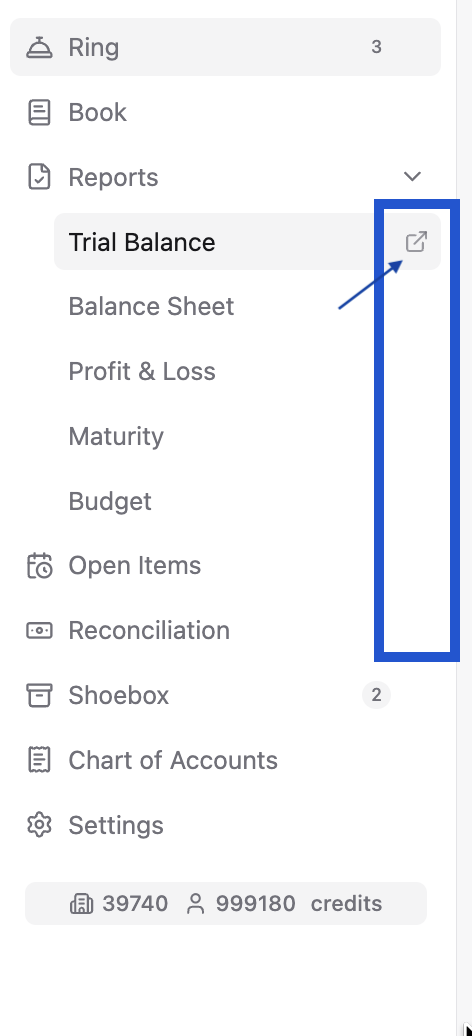
Faster still: hover a sidebar item and click the open-in-new-tab icon at its right edge.
Fit more on one screen
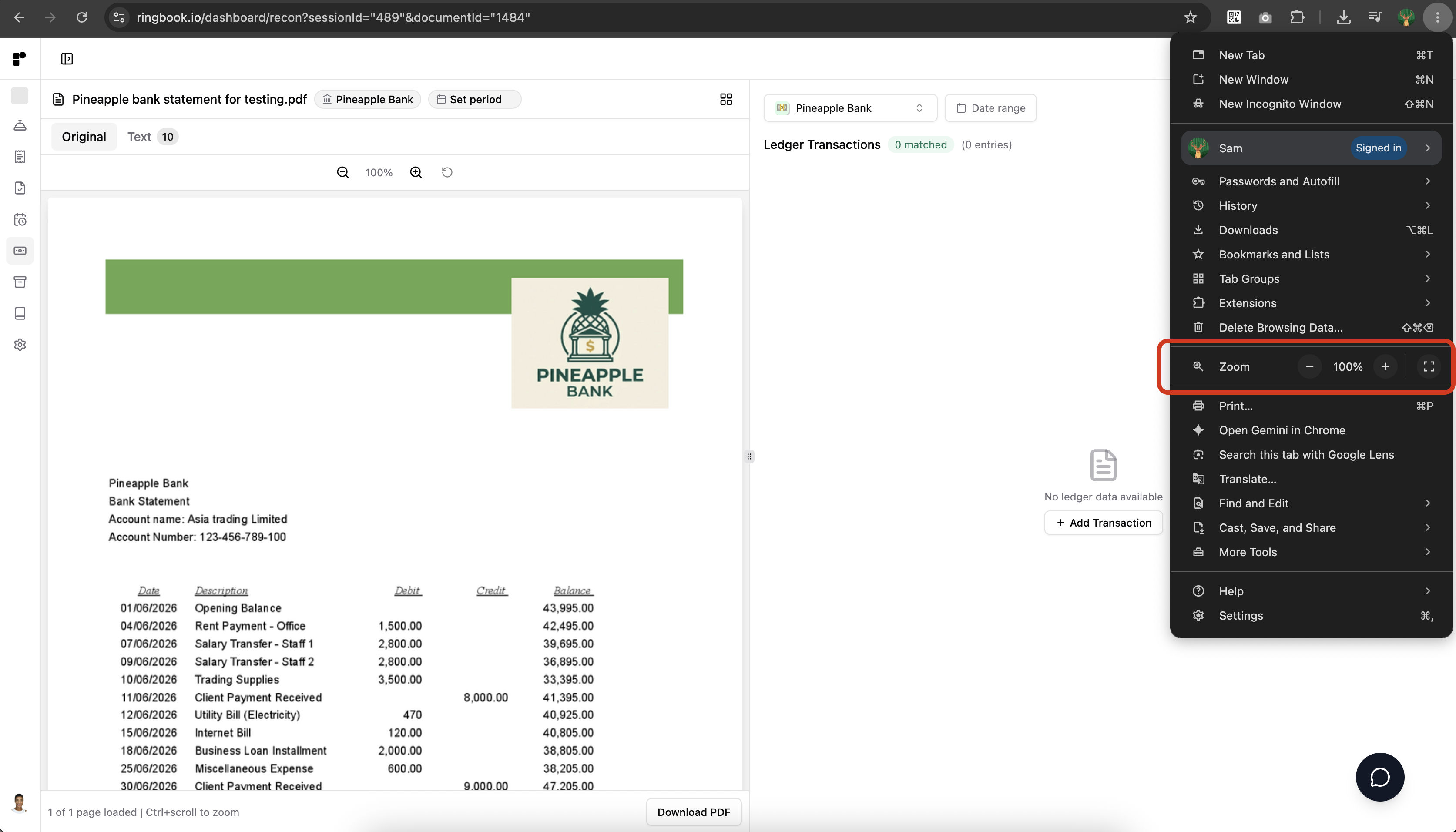
Zoom out with your browser: ⌘ - (Windows: Ctrl -). Reset with ⌘ 0 (Windows: Ctrl 0). A smaller zoom is useful on wide tables and on reconciliation, where the bank statement and the ledger sit side by side.
Share one cost across cost centers
Assign a line to a segment, or split it with a saved allocation driver, then read the Profit and Loss by segment. For example, Rent Expense of 8,000.00 split 60 / 40 shows 4,800.00 for Design and 3,200.00 for Admin. Steps are in Manual entry and shortcuts.
Account and credits
How credits are charged
AI features spend the organization's credits first. If the organization balance runs out, they use your personal credits, provided Use personal credits when org runs out is switched on in your profile. It is on by default. Buying, transferring and the usage history are in Credits and billing.
| Situation | What to do |
|---|---|
| A company with a team | Top up the organization so everyone draws from one balance. |
| An accountant serving many clients | Buy credits on your personal account and keep the fallback switched on. The same balance covers every set of books you are invited to. |
Photos in HEIC format
Ringbook does not accept Apple's .heic photos when you upload them directly. On an iPhone, choose Settings → Camera → Formats → Most Compatible and new photos are saved as .jpg. Photos you send through WhatsApp arrive as JPEG, so they need no change.
Report a problem or send feedback
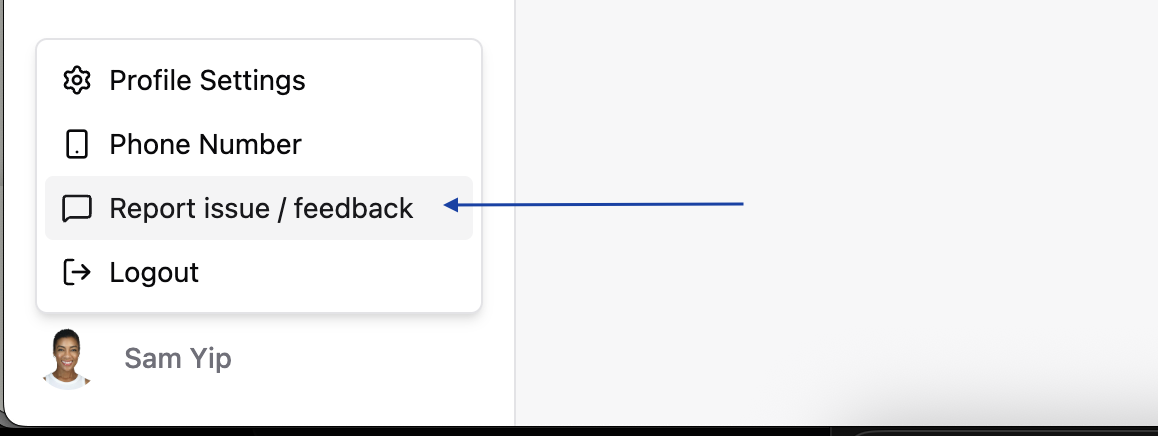
Open your profile menu at the bottom left and choose Report issue / feedback. Describe what you were doing and what you expected.